Contracts saved as a Word or PDF file (10MB or less) can be uploaded to Vault Contract Management. This can be done by performing the following steps:
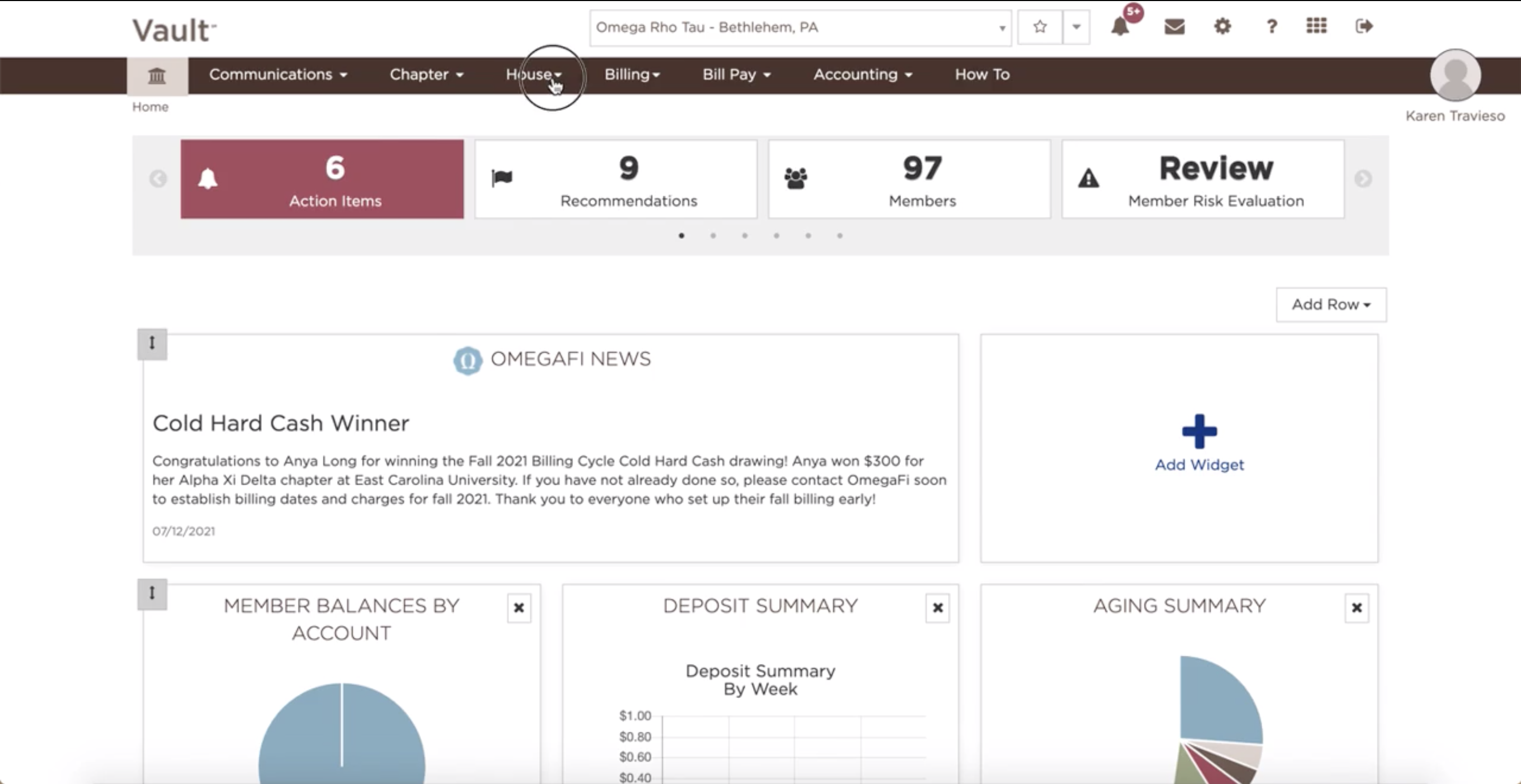
- Click on the "House" tab
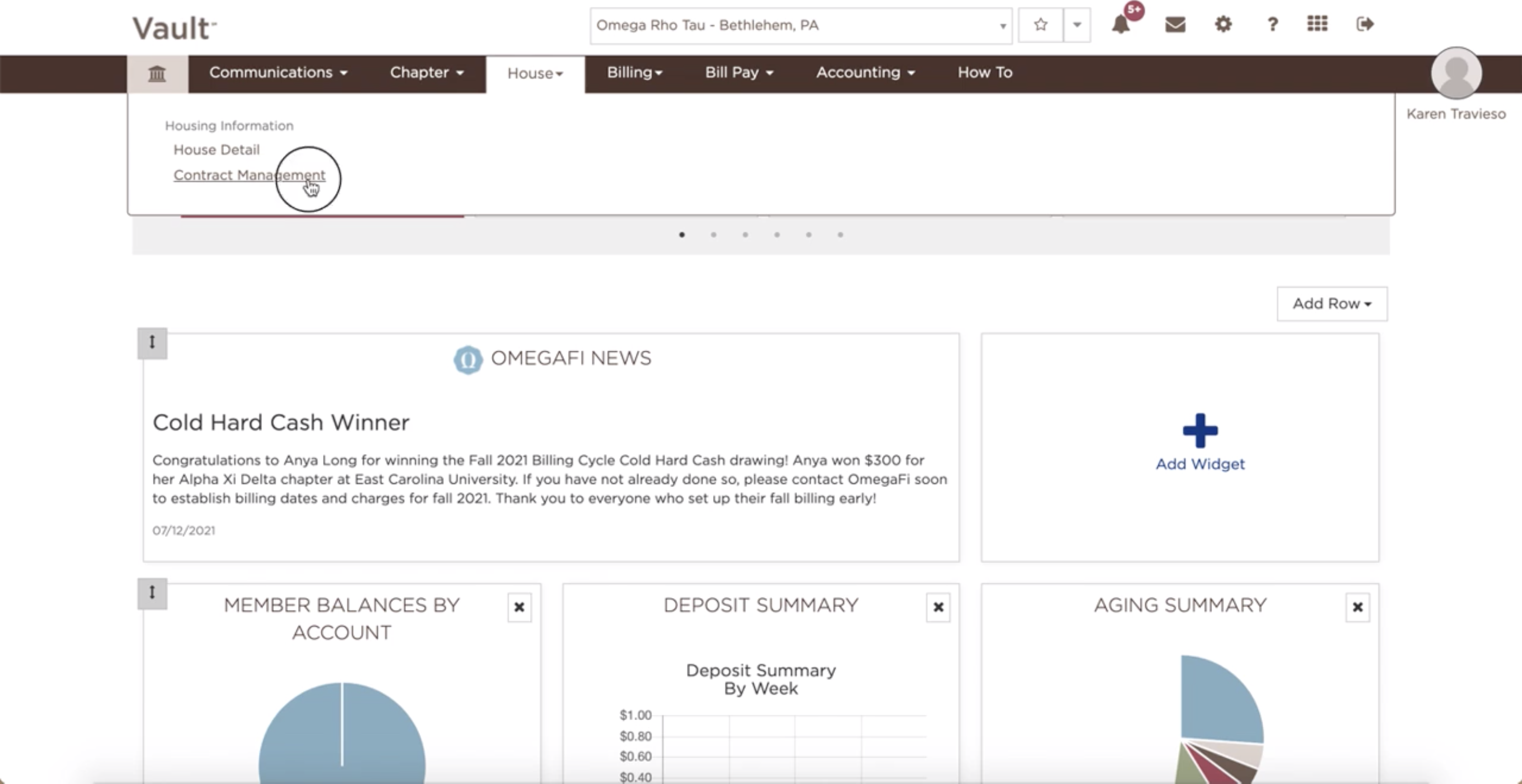
- Select "Contract Management"
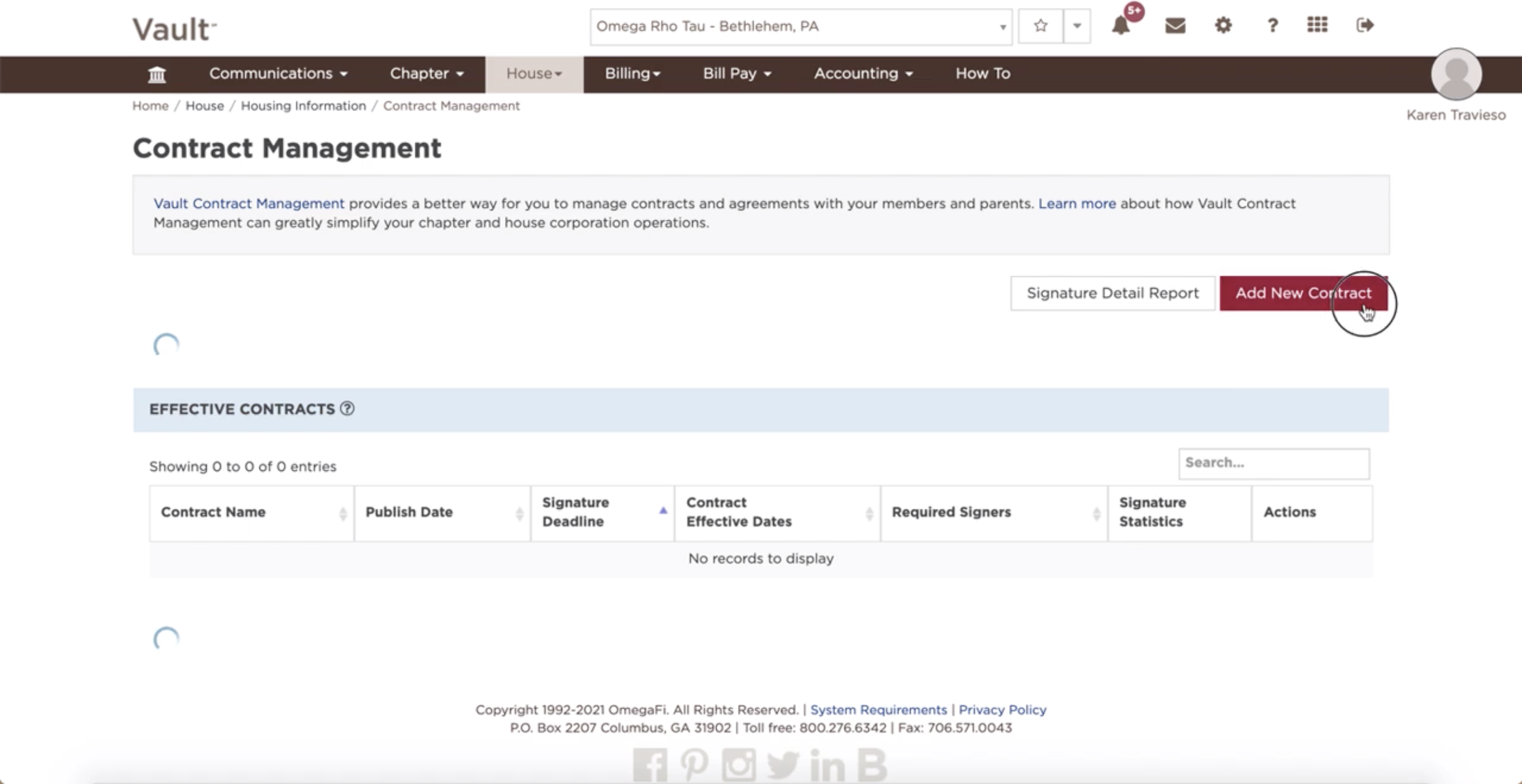
- Click on "Add New Contract"
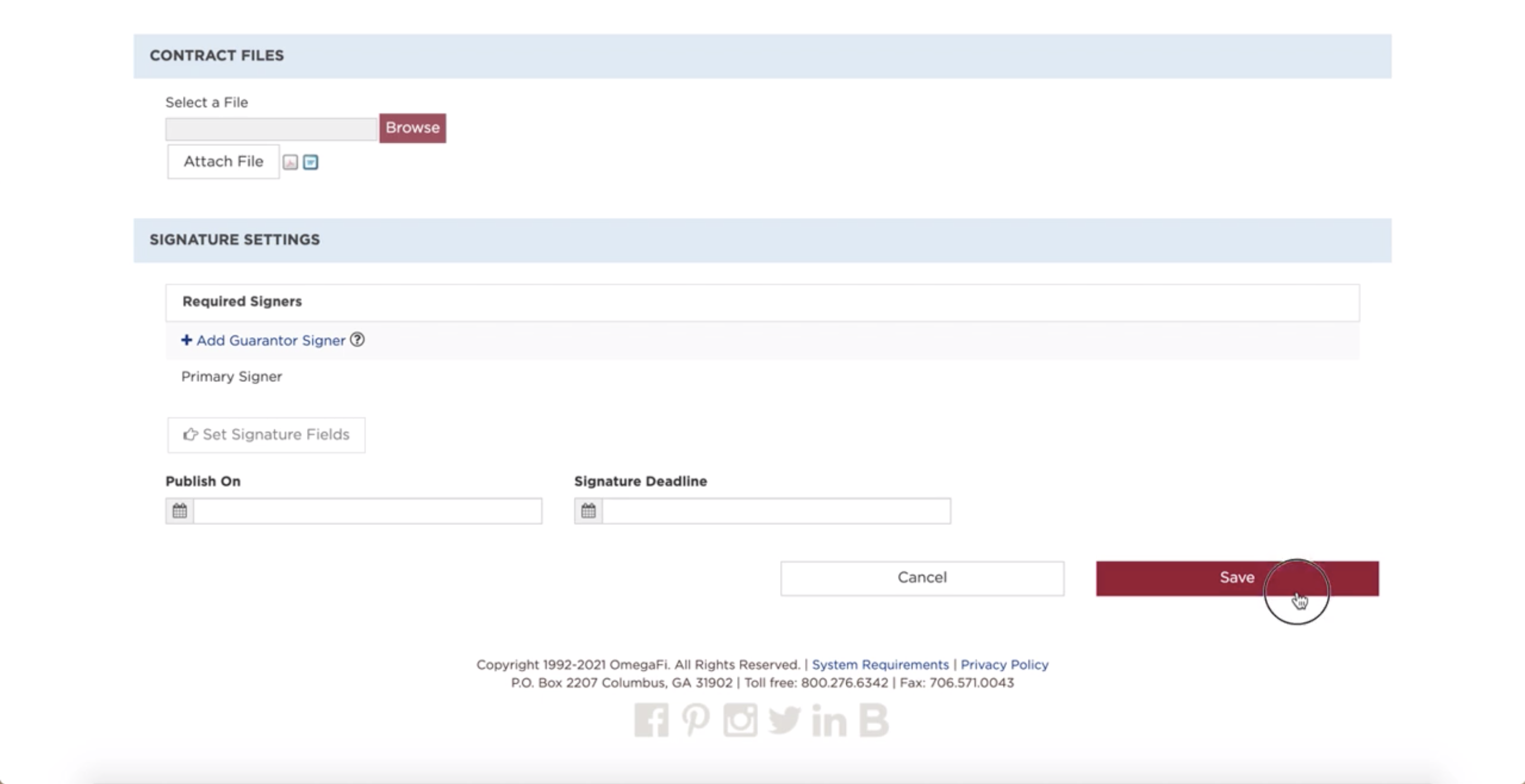
- Fill in available fields with the necessary information
- Select "Save"
Please note the following:
- Once a contract is added and you choose the recipients, they will receive an email notification from OmegaFi letting them know they have a contract available.
- Recipients log into their member account to view and sign the contract and designate the guarantor when needed.
- The Signer Message is a box that the creator of an agreement can add to provide any specific details or reminders related to the contract. It is not a required field.
- A Guarantor (when required) receives notification via email and may read and sign the agreement online or through their phone.
- Chapter administrators can view the real-time activity of the contract (in progress, effective and historical) in Vault and know when contracts are signed.
- All parties involved can view signed contracts online through Vault or their member account anytime.